
- Step 1
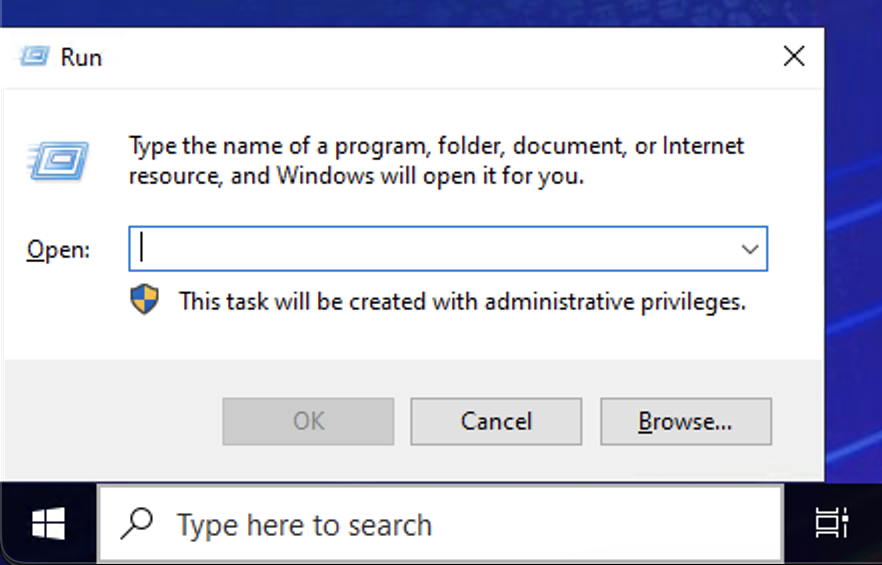
Press Windows Key + R to open Run
- Step 2
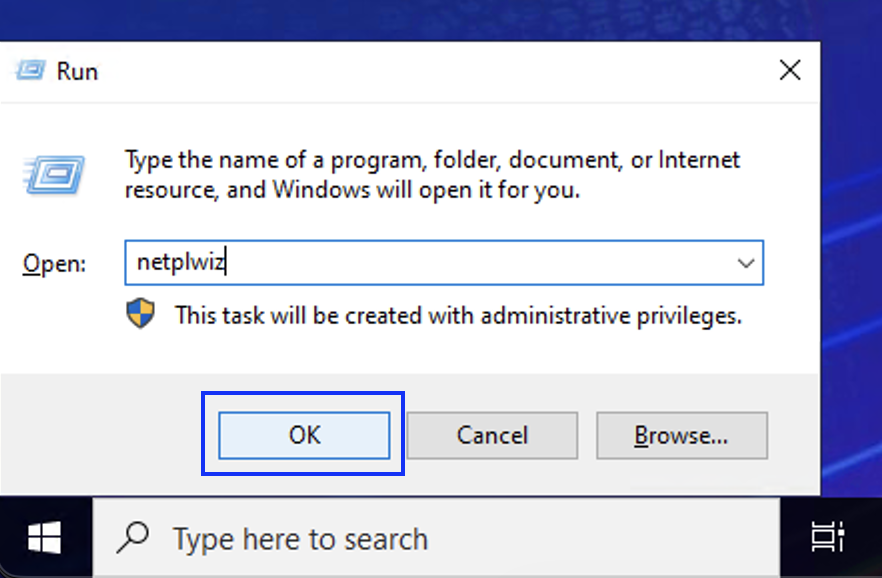
Type “netplwiz” and press ok
- Step 3
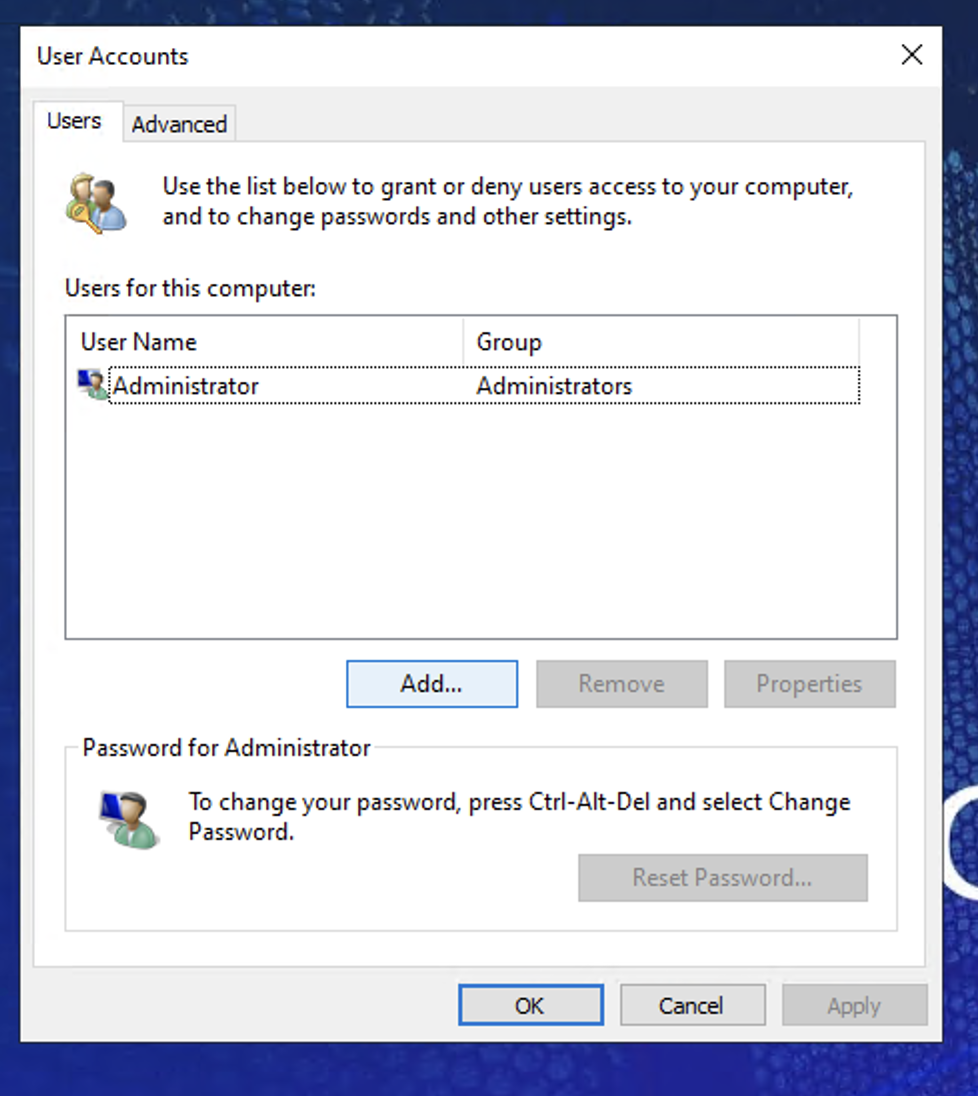
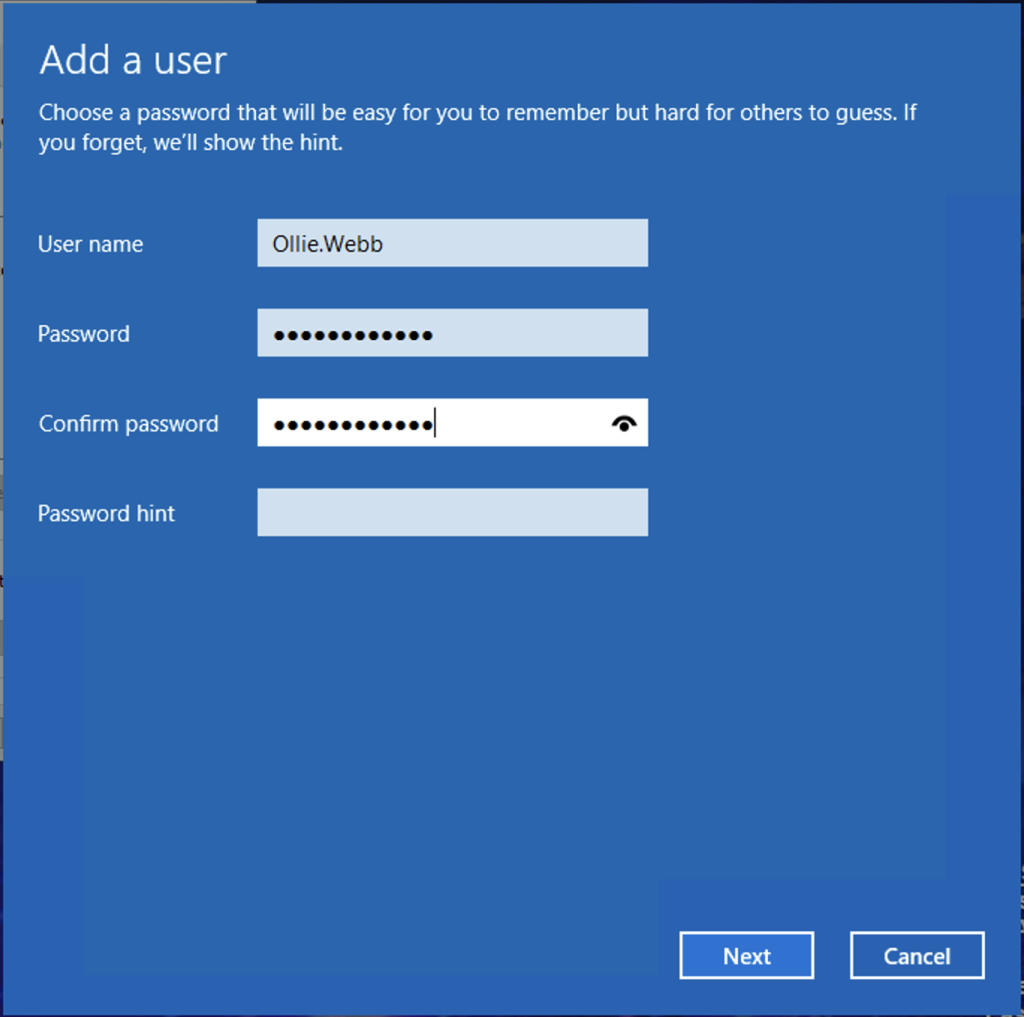
Press ‘Add’ and create the account
- Step 4
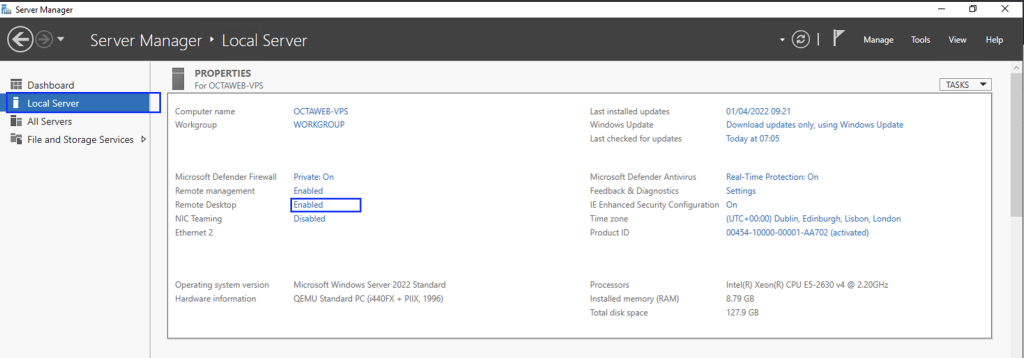
Open up Server Manager (WIN+R > ServerManager)
Click on Local Server and find ‘Remote Desktop’, Click on ‘Enabled’ next to it
- Step 5
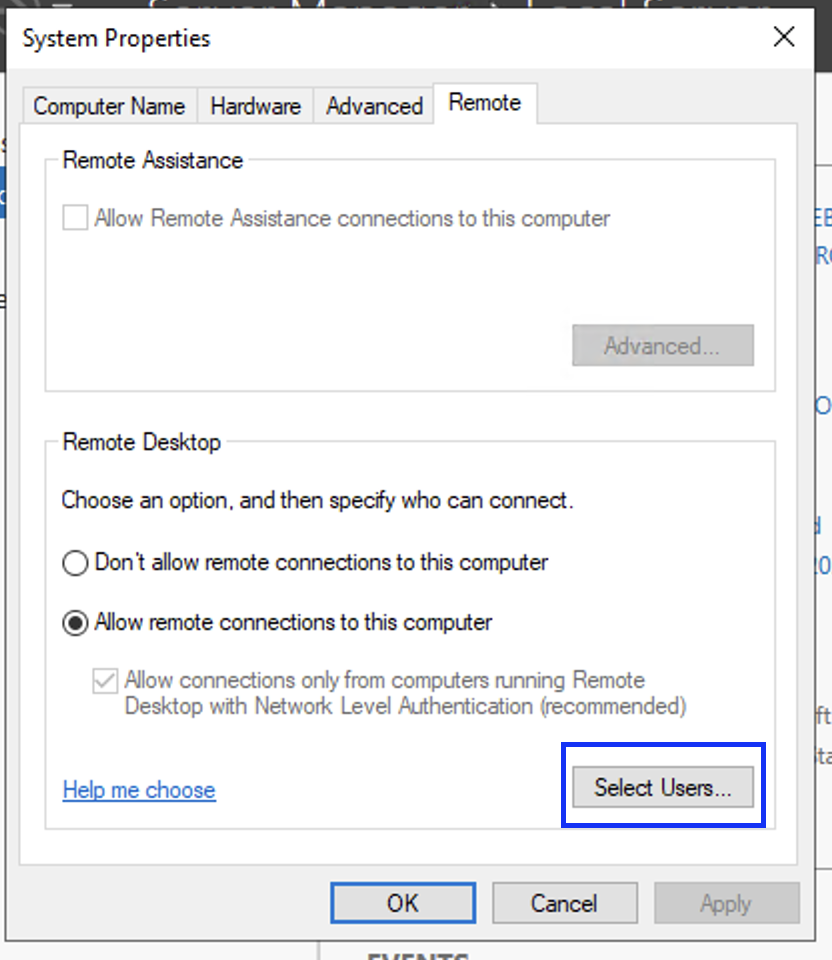
Click ‘Select Users’, then ‘Add’
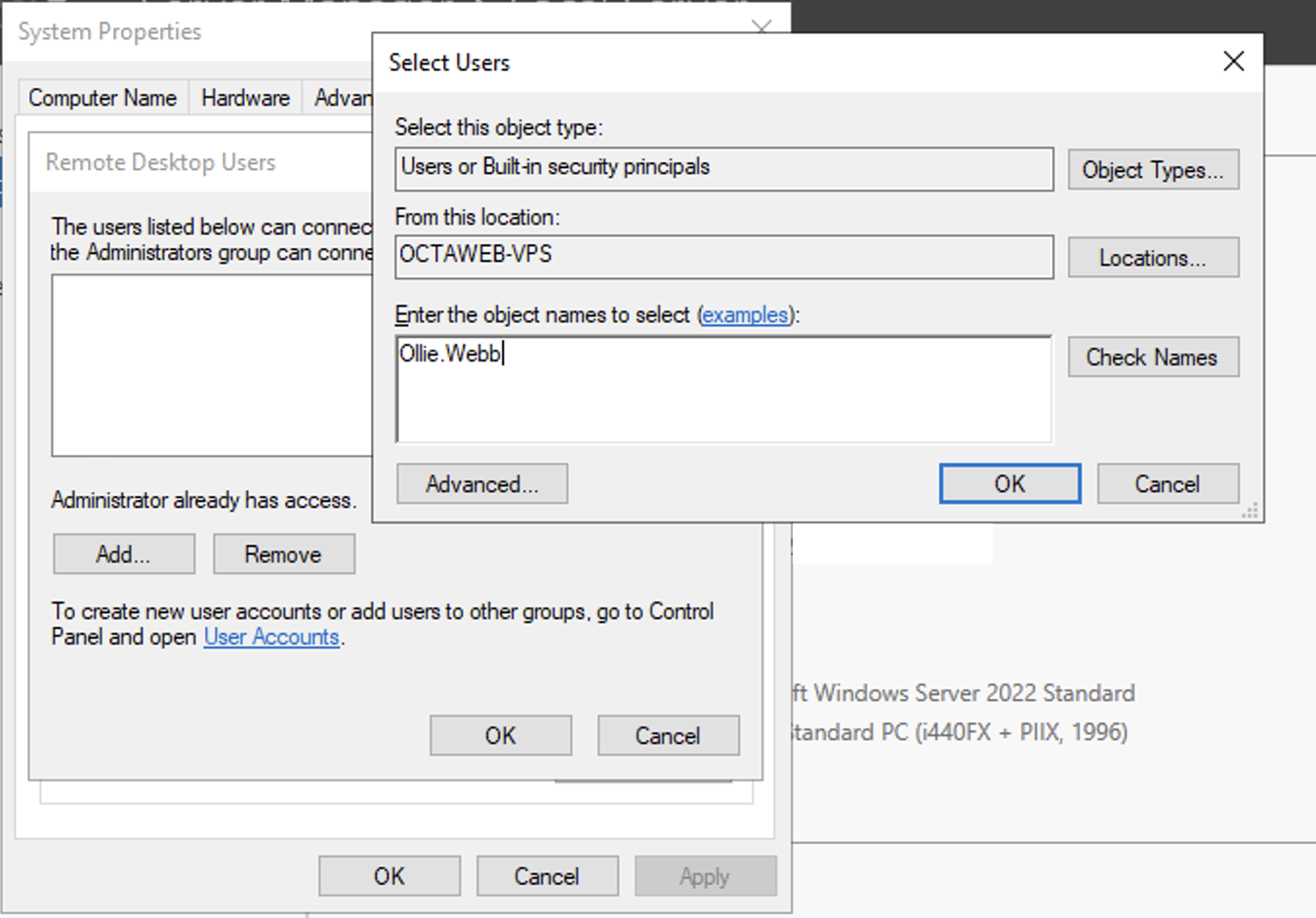
Type in the Username of the User you created (in this case ‘Example’) and press ‘OK’ until you’re back on the System Properties page. Press ‘Apply’, then ‘OK’ to close it down.
Adding a User to your VPS
Shows how to create an additional Windows VPS user and grant Remote Desktop access without giving unnecessary administrator permissions.